
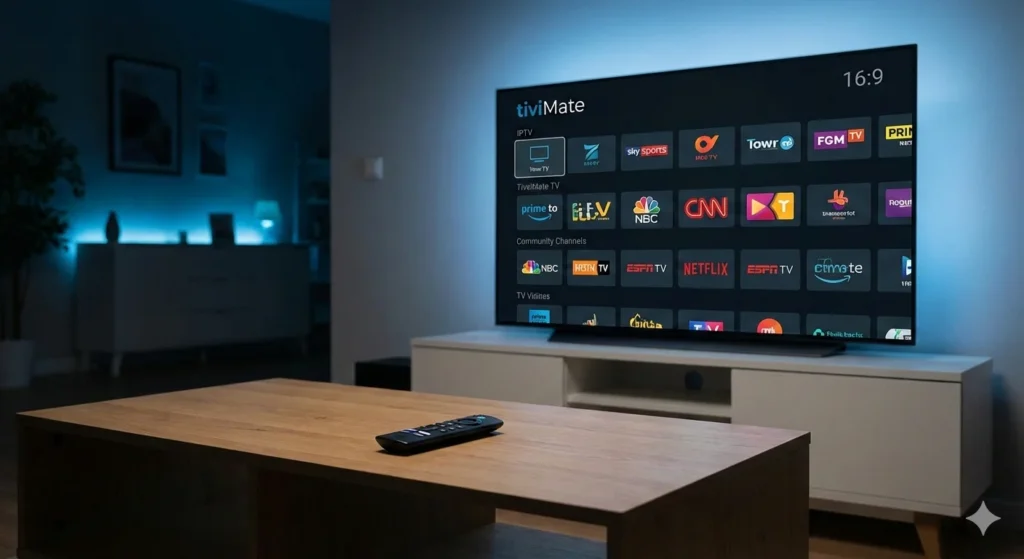
In the world of cord-cutting, 2026 has seen many apps come and go, but one name remains the gold standard for IPTV enthusiasts. If you are looking for a way to transform your television into a professional broadcasting hub, learning how to install TiviMate on FireStick is the first step.
TiviMate isn’t just another media player; it is a premium-grade interface designed to give you a cable-like experience without the heavy monthly bills. Whether you are using the latest Fire TV Stick 4K Max or an older model, this guide will walk you through the entire process in minutes.
Why TiviMate is the Leading IPTV Player in 2026
Before we dive into the technical steps, it’s important to understand why TiviMate dominates the market. Unlike basic players, TiviMate offers:
- Sleek User Interface: A modern design that rivals high-end cable boxes.
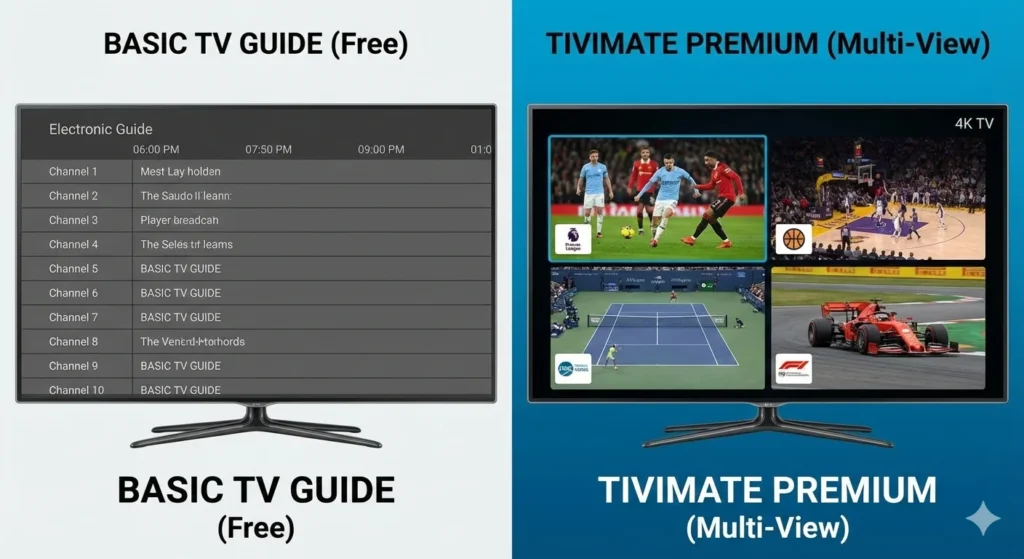
- Multi-View Support: Watch up to 9 streams simultaneously (perfect for sports Sundays).
- Highly Customizable EPG: Detailed TV guides that actually load fast.
- Scheduled Recording: Save your favorite shows directly to local or network storage.
What is TiviMate IPTV Player?
TiviMate is a popular IPTV player that allows users to stream live TV channels provided by IPTV services. Designed with a sleek and intuitive interface, TiviMate offers a user-friendly experience for watching TV on FireStick and other Android-based devices. Unlike some IPTV apps that include their own channel lists, TiviMate acts as a platform where you can input your own IPTV service details, such as M3U URLs or Xtream Codes, to access live TV, catch-up shows, and more.
Prerequisites: Preparing Your FireStick
To successfully how to install TiviMate on FireStick, your device needs to be ready for “sideloading.” Since TiviMate is not hosted directly on the Amazon Appstore, we use a secure method to fetch the official APK.
Step 1: Enable Developer Options
Amazon has updated its interface recently. To unlock the hidden developer menu:
- Navigate to Settings (the gear icon) on your FireStick home screen.
- Select My Fire TV.
- Click About.
- Highlight your device name and click the Select button 7 times until it says, “No need, you are already a developer.”
- Go back one screen to see the newly unlocked Developer Options.
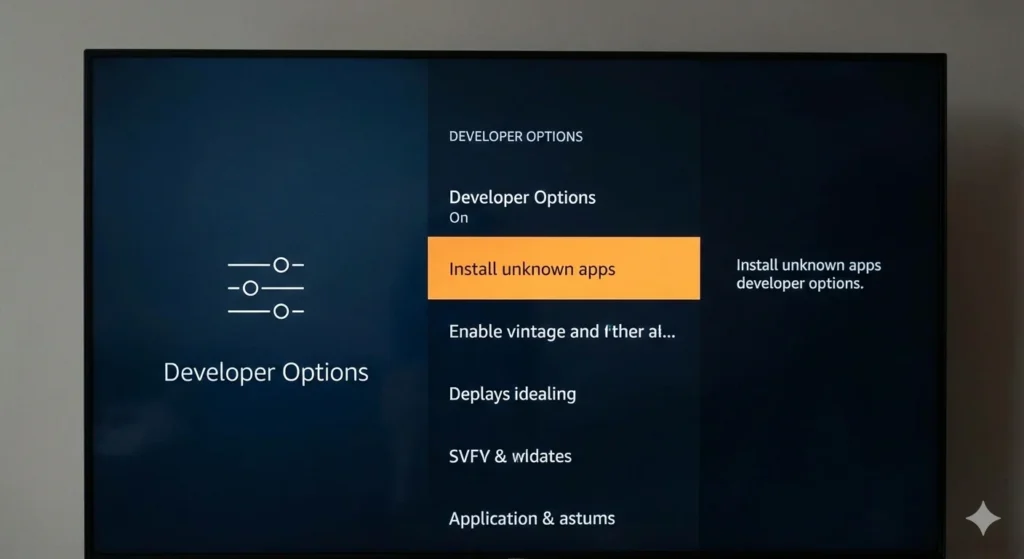
Step 2: Allow Unknown Apps
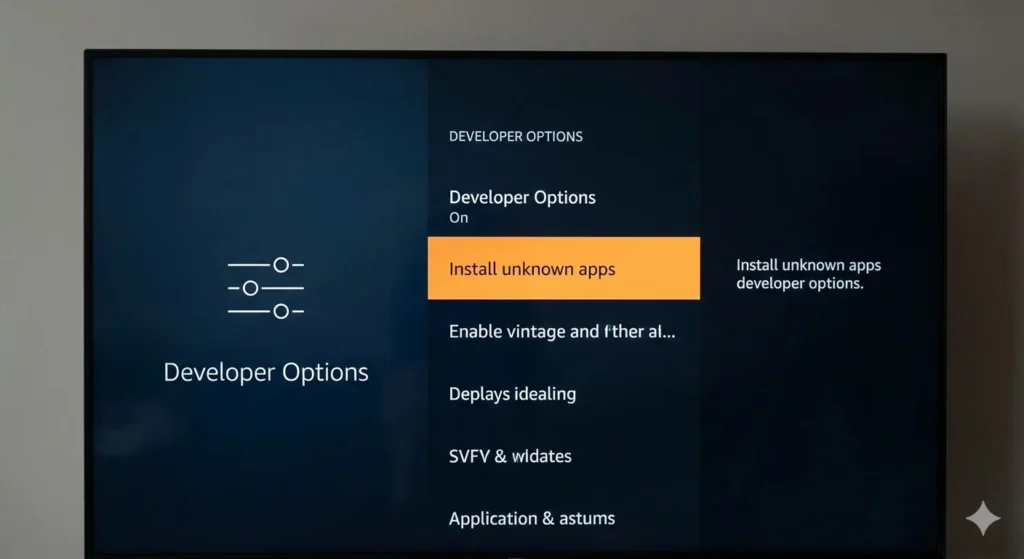
- Open Developer Options.
- Click on Install unknown apps.
- (Note: You will turn this “ON” for the Downloader app in the next section).
Step 3: Installing the Downloader App
To get TiviMate, you first need a tool called Downloader. This is a free, official app available on the Amazon Appstore.
- Go to the Find menu on your FireStick home screen.
- Search for “Downloader.”
- Select the orange Downloader icon and click Download/Get.
- Once installed, open the app and click Allow when prompted for storage permissions.
How to Install TiviMate on FireStick (The Core Steps)
Now that your hardware is prepped, follow these exact steps to get the app running:
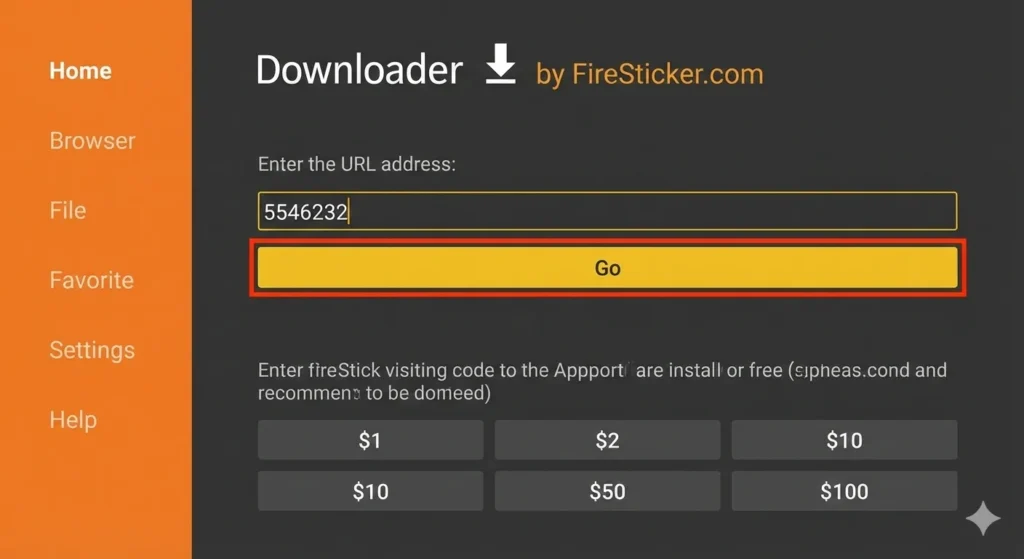
- Launch the Downloader app.
- Highlight the URL search box and type the following official TiviMate shortcode: 5546232 (or the direct URL:
https://tivimate.com/tivimate.apk). - Click Go. The APK file will begin downloading immediately.
- Once the download finishes, a window will pop up. Click Install.
- After the installation is complete, click Done.
- Pro Tip: When prompted, click Delete on the APK file. This saves valuable storage space on your FireStick by removing the installer while keeping the app.
Step 4: Setting Up Your IPTV Playlist
TiviMate is a “player only.” It does not come with built-in channels. You must provide your own playlist from a reputable service provider.
- Open TiviMate.
- Click Add Playlist.
- Choose your preferred method: M3U Playlist, Xtream Codes, or Stalker Portal.
- Enter the details provided by your IPTV service.
- Click Next and wait for the EPG (Electronic Program Guide) to populate.
TiviMate Free vs. Premium: Is the Upgrade Worth It?
While the free version is functional, the Premium subscription is what makes TiviMate the best app on the market.
| Feature | TiviMate Free | TiviMate Premium |
| Playlists | 1 Only | Unlimited |
| TV Guide (EPG) | Basic | Advanced/Automatic |
| Multi-View | No | Up to 9 Screens |
| Recording | No | Yes (Cloud/Local) |
| Custom Groups | No | Yes |
| Parental Controls | Limited | Full Support |
Note: To unlock Premium on a FireStick, you will need to download the TiviMate Companion app on an Android phone or tablet to manage your subscription.
Troubleshooting Common Installation Issues
Even with the best guide, technical hiccups can happen. Here is how to fix them:
- “App Not Installed” Error: Usually means you have an old version of TiviMate still on your device. Uninstall any previous versions before trying again.
- Downloader Won’t Connect: Ensure you have allowed “Install unknown apps” specifically for Downloader in your FireStick settings.
- Playlist Won’t Load: Double-check your URL for typos. IPTV URLs are case-sensitive.
- Buffering Issues: Check your internet speed. For 4K streaming, we recommend at least 25 Mbps. Consider using a trusted VPN for FireStick to avoid ISP throttling.
🚀 Ready to Unlock 40,000+ Channels in 4K?
Now that your FireStick is secure and private, don’t waste it on limited content libraries. Get instant access to our Premium IPTV Service—featuring 20,000+ live channels, every major sports package, and a massive VOD library with zero buffering.
Frequently Asked Questions (FAQ)
Is TiviMate legal to use?
Yes, TiviMate is a perfectly legal media player. It does not host any content itself. It is simply a tool that allows you to play your own legally obtained IPTV playlists. Always ensure the content you are accessing complies with your local copyright laws.
Can I install TiviMate on FireStick without a computer?
Absolutely. This guide shows you how to do it entirely on your FireStick using the Downloader app. You do not need a PC or Mac to complete the installation or the setup process.
How much does TiviMate Premium cost in 2026?
Currently, TiviMate offers two tiers: a yearly subscription (approx. $9.99/year) and a one-time lifetime purchase (approx. $29.99). These prices may vary slightly based on your region and current promotions on the Google Play Store.
Why is my EPG not showing any information?
This is usually caused by an incorrect EPG URL or the provider’s server being down. In TiviMate settings, go to EPG > Update EPG to manually refresh the data. If it still fails, contact your IPTV provider for a new link.
Does TiviMate work on other devices besides FireStick?
Yes. TiviMate works on all Android-based devices like Android TV boxes, smart TVs, and Android smartphones. It’s not available for iOS or Windows.
Can I record live TV on TiviMate?
Yes, but only with the Premium version. Recording depends on your storage and IPTV provider’s support for recording streams.
How do I add multiple IPTV playlists in TiviMate?
In TiviMate, go to Settings → Playlists → Add Playlist repeatedly. You can label each playlist (e.g. “USA,” “Sports,” “Kids”) and manage them in the interface easily.
Final Thoughts & Next Steps
Learning how to install TiviMate on FireStick unlocks a world of high-quality streaming that traditional apps simply cannot match. With its 2026 updates, the app is faster and more stable than ever.
Ready to take your streaming to the next level?
- Check out our guide on the [Best IPTV Services for 2026]
- Learn [How to Set Up a VPN on FireStick] for secure viewing.